








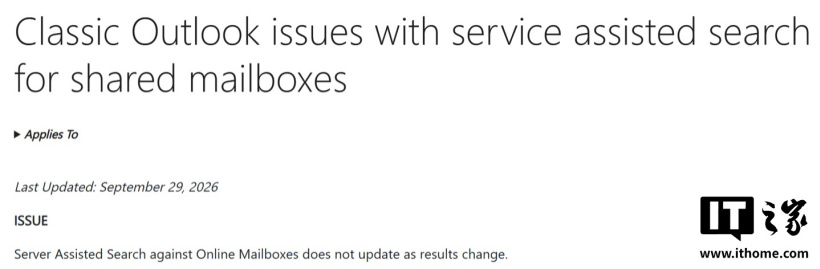
IT News on October 7th: On September 29, 2026, Microsoft updated its support documentation, acknowledging that there was a Server Assisted Search search issue with the Outlook for Microsoft 365 Classic Edition. This issue affected email searches in online mode, preventing search results from updating in accordance with changes to the email content.
IT Note: Server Assisted Search is a server-side assisted search mechanism used by Microsoft in Outlook. It relies on cloud-based search services to assist in returning email content results. The design goal of this mechanism is to enhance the search coverage and response capabilities within online emails. However, the issue encountered this time resulted in a result list that did not reflect changes in email status in a timely manner.
Online mode refers to the operating method where Outlook directly connects to Exchange Online or Exchange servers to read email data. Unlike cache mode, online mode typically does not save a complete copy of the emails locally; therefore, searches rely more on server-side services.
In terms of issue behavior, after users search for emails within the 'current folder' range, if they drag one of the results to an adjacent folder, that email will still remain in the search results. When users click on that result, Outlook displays an error message, whereas under normal circumstances, the moved email should disappear from the original search results.
Microsoft indicates that this issue may also occur after setting categories for emails or marking them as read or unread. Microsoft has escalated this issue to the Outlook team and is also working on it alongside Hotfix. The official status is "under repair," but no expected release date for the fix has been announced yet.
As a temporary solution, Microsoft recommends that users disable Server Assisted Search. Once disabled, the Classic Edition's Outlook will revert to Windows Desktop Search, which is the old version of the Windows desktop search mechanism.
Users need to open the following registry path:
Then create a DWORD value named DisableServerAssistedSearch and set its value to 1. This operation only affects the Outlook search configuration under the current Windows user account.